How to Set Up IPTV on an Amazon Firestick: Your Complete 2026 Guide
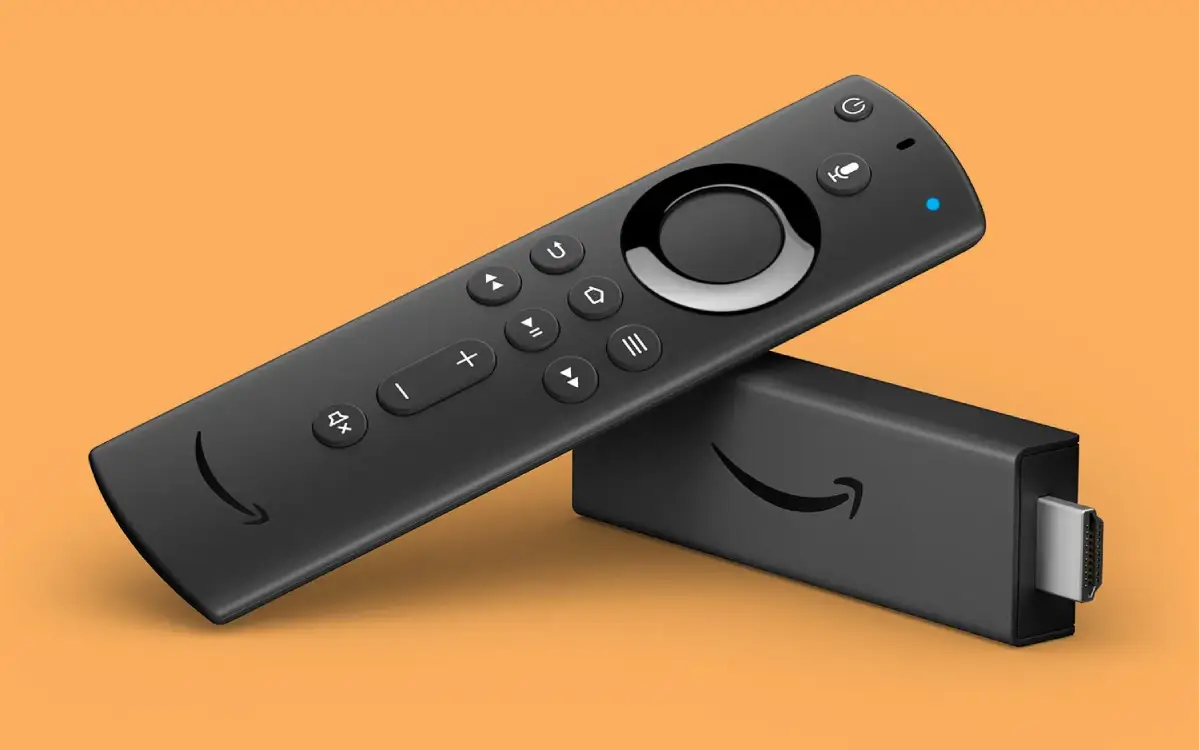
A step-by-step guide to installing and setting up our IPTV service on any Amazon Firestick, Fire TV, or Fire Cube. Start watching in minutes!
Setting up your IPTV subscription on an Amazon Firestick is quick and easy. This guide will walk you through the entire process, from installing the right app to logging in and watching your favorite channels.
Step 1: Install the Downloader App
Since most IPTV apps aren't available on the Amazon Appstore, we first need to install the 'Downloader' app. This will allow us to install other apps from the internet.
- From your Firestick home screen, go to Find, then Search.
- Type "Downloader" and select the orange Downloader app from the results.
- Install the app.
Step 2: Enable "Apps from Unknown Sources"
This is a crucial security setting you need to enable to install our IPTV app.
- Go to Settings (the gear icon) on your Firestick.
- Select My Fire TV.
- Choose Developer Options.
- Turn ON the setting for Apps from Unknown Sources.
Step 3: Download and Install Our IPTV App
Now, open the 'Downloader' app you installed in Step 1. You will be prompted to enter a URL. Please enter the specific URL provided in your subscription welcome email.
The app will download and a prompt will appear. Click Install to install our IPTV service application.
Step 4: Log In and Enjoy
Once installed, open the IPTV Service app. You will be asked to enter the username and password that were sent to you after you purchased your IPTV subscription. Enter them, log in, and you're ready to start streaming over 33,000 channels!
If you have any issues, our 24/7 support team is always available to help.