10 Hidden Features of IPTV Smarters Pro You're Not Using (2026 Update)
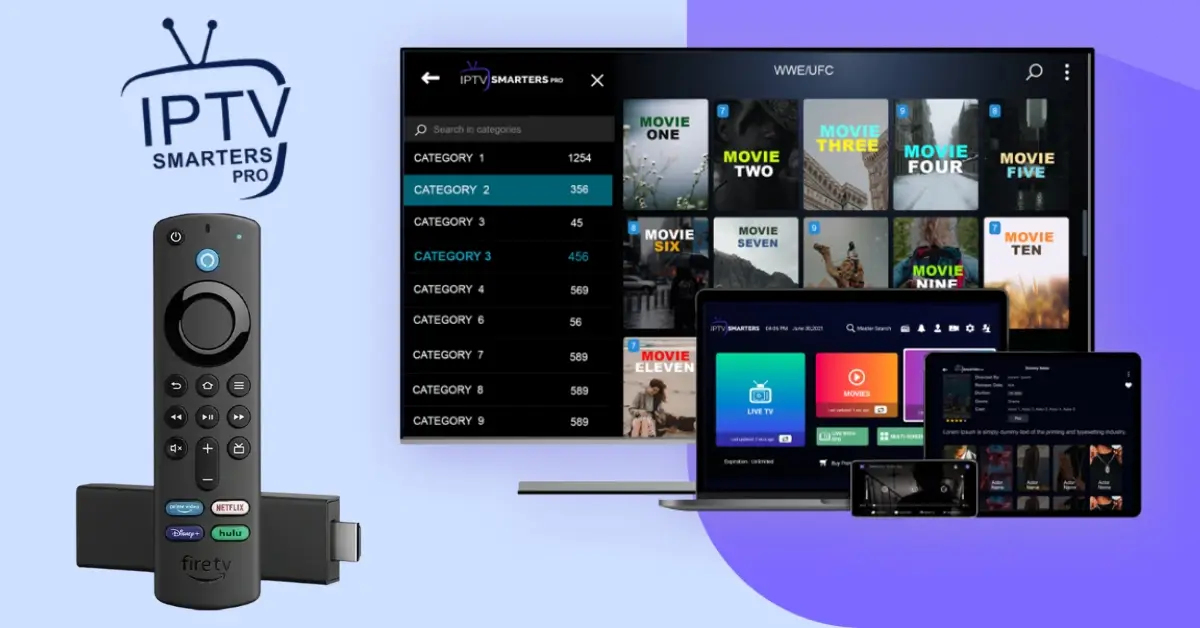
Think you know IPTV Smarters Pro? This guide reveals 10 powerful, hidden features you're probably not using, from multi-screen viewing to customizing the TV guide and setting parental controls.
Introduction: Become an IPTV Smarters Pro Power User
You’ve installed **IPTV Smarters Pro**, logged in with your IPTV service credentials, and you’re browsing thousands of channels. But are you getting the most out of this powerful application? Most users only scratch the surface, completely missing the advanced features that can transform their viewing experience.
This guide will take you from a beginner to a power user. We’ll uncover 10 hidden or overlooked features of **IPTV Smarters Pro** that will help you customize your layout, improve performance, and take full control of your content library.
1. The Multi-Screen Feature: Watch Up to Four Channels at Once
This is arguably the app's coolest hidden feature, especially for sports fans. The multi-screen function allows you to split your screen and watch up to four different live channels simultaneously. Never miss a moment of the action on game day!
How to use it: While watching a live channel, press the select/center button on your remote to bring up the overlay, then navigate to the "Multi-Screen" icon. You can then select the layout and add other channels to the different screens.
2. Customize Your Live TV Categories
Is your channel list overwhelming? You can easily hide categories you never watch (like channels from a specific country) to create a cleaner, more personalized guide.
How to do it: Go to Settings > Player Settings > Categories. From here, you can select "Hide Categories" and uncheck any groups you don't want to see in your Live TV list.
3. Use an External Video Player
While the built-in player is good, external players like VLC or MX Player can sometimes offer better performance or more advanced subtitle options. **IPTV Smarters Pro** allows you to integrate them seamlessly.
How to do it: First, install VLC or MX Player on your device. Then, in IPTV Smarters Pro, go to Settings > External Players. Click "Add Player" and select the app you installed. You can then set it as the default player for different content types.
4. Set Up Parental Controls
If you have kids in the house, this feature is essential. You can set a password to block access to specific channel categories (like adult content) or content with certain ratings.
How to do it: Go to Settings > Parental Control. You can create a password and then choose which categories you want to lock.
5. Record Live TV
Did you know you can record live TV directly to your device? While it's not a full cloud DVR, it's perfect for saving a specific game or show to watch later.
How to do it: While watching a live channel, bring up the on-screen overlay and select the "Record" icon. The recording will save to your device's local storage.
6. Picture-in-Picture (PiP) Mode
On supported devices (like the NVIDIA Shield or some Android phones), you can shrink your current stream into a small window that floats over other apps, allowing you to multitask while keeping an eye on the game.
How to do it: While a stream is playing, press the home button on your remote. If your device supports PiP, the stream will automatically shrink into a corner window.
7. Run an Internet Speed Test
If you're experiencing buffering, you can check your connection quality without leaving the app. This is crucial for diagnosing whether the issue is with your internet or the stream itself.
How to do it: Go to Settings > Speed Test and run the test.
8. Manually Refresh the TV Guide (EPG)
Sometimes the Electronic Program Guide (EPG) can get stuck or show outdated information. A manual refresh can fix this instantly.
How to do it: Go to Settings and simply click on **"Refresh TV Guide (EPG)"**.
9. Change the App's Theme
Tired of the default look? **IPTV Smarters Pro** comes with several built-in themes to change the color scheme and layout of the entire application.
How to do it: Go to Settings > Themes and choose a new one. No restart is required!
10. Set a Default Channel Group on Startup
Do you always find yourself navigating to the "USA Entertainment" or "UK Sports" category? You can set the app to open directly to your favorite group of channels.
How to do it: Go to Settings > General Settings and look for an option like "Default Categories" to set your preferred startup group.
Conclusion
IPTV Smarters Pro is far more than a simple player. By mastering these hidden features, you can create a truly personalized and powerful streaming setup. Dive into the settings, experiment with these functions, and take full control of your IPTV experience.
Frequently Asked Questions (FAQs)
Q1: Do I need the premium version of IPTV Smarters Pro for these features?
A: No! All the features listed above are available in the free version of the app. The "premium" version offered within the app is a separate purchase that unlocks a few extra cosmetic features but is not required for full functionality.
Q2: Where do recordings save on my Firestick?
A: Recordings are saved to the internal storage of your device. Be mindful of this, as Firesticks have limited space. It's best to delete recordings after you watch them to keep your device running smoothly.